
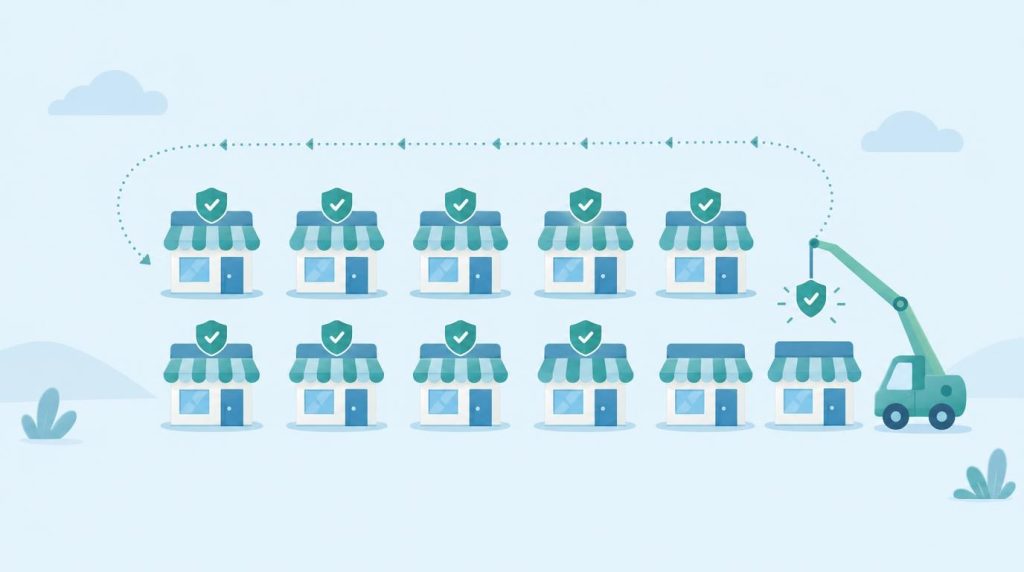
What actually happened?
On 28 October, the WordPress team released version 7.1.4. It fixes 22 security problems in WordPress itself. Most are minor and need someone to be logged in already. One is not. It sits in the part of WordPress that installs updates, and in the worst case it could let a stranger run their own code on your site without needing a password.
The security firm Wordfence reported that attackers began probing for the problem within hours. In the first 24 hours it blocked around 63,000 attempts. It has not reported any confirmed break-ins from this, which is reassuring, but it shows how quickly people go looking once a fix is public.
Why does it matter to a small business?
Think of it like a shop being refitted. While the builders are carrying new fittings through the back door, there is a short moment when that door is not as secure as usual. This flaw lets someone slip in during that moment. It is hard to pull off, because the window lasts only seconds, but automated tools can keep trying all day and night.
It affects a very wide range of sites too: every version of WordPress from 4.7 through 7.1.3. If your site has not updated, it is exposed. If it runs WordPress 4.6 or older, there is no fix at all, and the site needs moving to a current version.
Step 1: Find out which version you are running
Log in to your WordPress dashboard and go to Dashboard, then Updates. The page tells you your version and whether a newer one is waiting. You are looking for 7.1.4, or the matching patched release for your branch. Do not assume it happened automatically. Background updates quietly fail more often than people think, so it is worth seeing the number with your own eyes.
Step 2: Update, with a backup first
If you are not on the latest version, take a fresh backup, then click Update Now. If you do not have a recent backup, sort that out first. A copy taken before an update is your safety net if something misbehaves. Once it finishes, go back to the Updates page and confirm the version has changed, then click around your site and test your contact form and checkout.
Step 3: Remember plugins and themes are separate
This release only covers WordPress itself. Your plugins and theme have their own updates, and they are where most real-world break-ins happen. While you are on the Updates page, update anything that is waiting, and remove plugins you no longer use. A deactivated plugin that is still installed can still be a way in.
Step 4: Have a quick look for anything odd
Go to Users and check every Administrator is someone you recognise. Then look at your Plugins page for anything you do not remember installing. If you spot an unfamiliar admin or plugin, do not just delete it and move on. Attackers often leave something behind to get back in, so this is the moment to ask for help.
The takeaway
WordPress has now put out seven core security releases since July, so updates are not a once-a-year job. The pattern is the same each time: a fix is announced, and within hours automated attackers start hunting for sites that have not applied it. The gap between ‘update released’ and ‘your site updated’ is the risk. The smaller you can make that gap, the safer you are.
If checking versions, testing updates and watching for odd behaviour is not how you want to spend your week, that is exactly what our WordPress Maintenance service takes off your plate. We apply updates promptly, check nothing broke, and keep an eye out for anything suspicious. You can find out more at https://simplicity.digital/services/wordpress-maintenance/ and we are always happy to answer questions, with no pressure.


